

Adjustment layers and non-destructive editing in PhotoCraft
How to use PhotoCraft’s 16 adjustment layers, smart objects and smart filters to edit without changing your original pixels, plus the destructive Image › Adjustments shortcuts.
Updated 2026-10-11 · PhotoCraft 0.7.0
PhotoCraft's README puts it simply: "Adjustment layers keep every edit live." You can stack them, mask them to an area, reorder them or turn them off, and your original pixels never change.
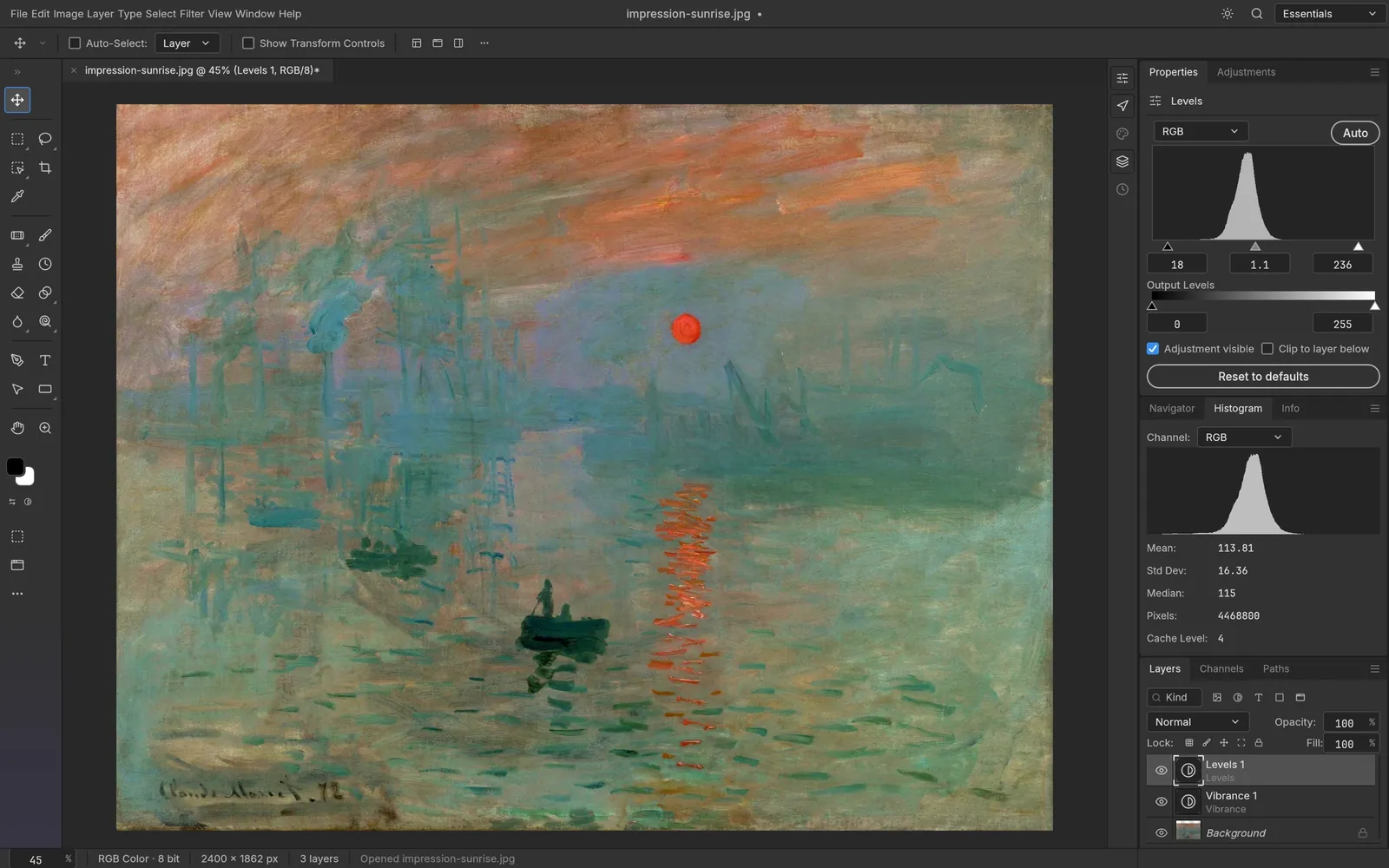
Adjustment layers
Screenshot from PhotoCraft (MIT OR Apache-2.0) · artwork: Impression, Sunrise, Claude Monet, 1872 (public domain) · ATTRIBUTION
The 16 adjustment layers
PhotoCraft's command registry defines these adjustments under Layer › New Adjustment Layer:
Brightness/Contrast, Levels, Curves, Exposure, Vibrance, Hue/Saturation, Color Balance, Black & White, Photo Filter, Channel Mixer, Invert, Posterize, Threshold, Gradient Map, Selective Color, Color Lookup.
Curves supports per-channel editing, Levels shows a live histogram, and Color Lookup loads .cube, .3dl and .look files.
Add an adjustment layer
- Select the layer you want the adjustment to sit above.
- Choose Layer › New Adjustment Layer and pick an adjustment.
- Change its settings. The canvas updates live.
- To limit it to an area, make a selection first, or paint on the adjustment layer's mask (see layer masks and selections).
Direct (destructive) adjustments
The same adjustments are also available under Image › Adjustments. They change the pixels directly. The default shortcuts are on the destructive versions:
| Adjustment | Shortcut |
|---|---|
| Levels… | Cmd+L |
| Curves… | Cmd+M |
| Hue/Saturation… | Cmd+U |
| Color Balance… | Cmd+B |
| Black & White… | Cmd+Alt+Shift+B |
| Invert | Cmd+I |
| Desaturate | Cmd+Shift+U |
According to the README, Image › Adjustments also includes Shadows/Highlights, Replace Color, Match Color, HDR Toning, Desaturate and Equalize.
Smart objects and smart filters
Run filters on a smart object and they stay editable: you can change, hide, reorder or mask them at any time. New in 0.7.0: applying Image › Adjustments to a smart object records it as a smart filter.
Undo anything
Full history, Edit › Toggle Last State (Cmd+Alt+Z) and the History Brush let you undo any step, down to a single brush stroke.
Sources
Every factual claim in this article is taken from these upstream files. If something here disagrees with them, the upstream source wins.
PhotoCraft Hub is an unofficial community site. PhotoCraft is made by the ArtCraft team; screenshots are from the PhotoCraft repository (MIT OR Apache-2.0) and show public-domain artwork.
NextLayer masks and selections in PhotoCraft