

Layer masks and selections in PhotoCraft
Selection tools in PhotoCraft 0.7.0 (Marquee, Lasso, Magic Wand, Quick and Object Selection, Select Subject, Select and Mask) and how to turn selections into layer masks, vector masks and Quick Mask.
Updated 2026-10-11 · PhotoCraft 0.7.0
The README describes PhotoCraft's selections as "selections that understand your image." There are precision tools, automatic tools, and a refine workspace, and every selection can become a mask.
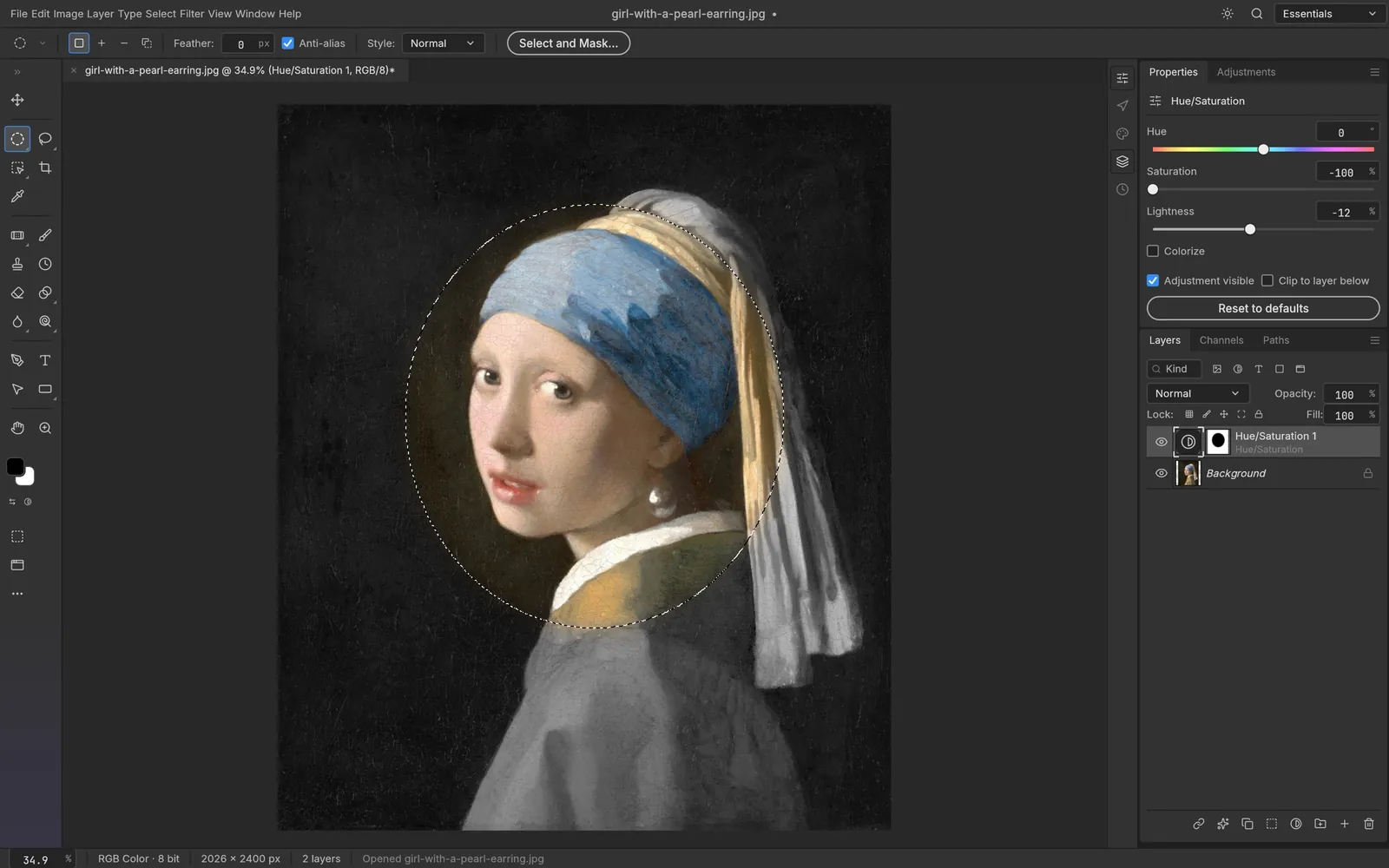
Masks and selections
Screenshot from PhotoCraft (MIT OR Apache-2.0) · artwork: Girl with a Pearl Earring, Johannes Vermeer, c. 1665 (public domain) · ATTRIBUTION
Selection tools
| Key | Tools |
|---|---|
M | Rectangular and Elliptical Marquee (Single Row and Single Column Marquee are also available) |
L | Lasso, Polygonal Lasso, Magnetic Lasso |
W | Magic Wand, Quick Selection, Object Selection |
Select Subject lets the computer do the tracing. The README notes that smart selection runs on your machine, with no cloud and no account.
Selection commands
| Command | Shortcut |
|---|---|
| Select › All | Cmd+A |
| Select › Deselect | Cmd+D |
| Select › Reselect | Cmd+Shift+D |
| Select › Inverse | Cmd+Shift+I |
| Select › Select and Mask… | Cmd+Alt+R |
| Select › Edit in Quick Mask Mode | Q |
The Select menu also includes Grow, Similar and Modify (Border, Expand, Smooth). The README also lists feather, contract and smooth. In 0.7.0, Feather uses the radius as the Gaussian's sigma, and Border and Smooth now behave as they do in Photoshop.
Refine with Select and Mask
Open Select › Select and Mask… to refine hair-fine edges. The 0.7.0 release made its CPU refinement four times faster. Double-clicking a layer mask can also open Select and Mask; this depends on a preference.
From selection to mask
The README says you can turn any selection into a layer mask, a vector path or a shape. The mask commands in the source include:
- Layer › Layer Mask › From Transparency
- Layer › Layer Mask › Apply and Delete
- Layer › Vector Mask (from the current path, Reveal All, Hide All, Delete)
New in 0.7.0: the Properties panel has density and feather controls for pixel masks, and the colors you paint with are kept separately for the mask and for the pixels.
Masks on adjustment layers
Make a selection before you add an adjustment layer, and the adjustment applies only inside it. The screenshot above uses an elliptical selection as the mask of a Hue/Saturation layer. See adjustment layers.
Sources
Every factual claim in this article is taken from these upstream files. If something here disagrees with them, the upstream source wins.
PhotoCraft Hub is an unofficial community site. PhotoCraft is made by the ArtCraft team; screenshots are from the PhotoCraft repository (MIT OR Apache-2.0) and show public-domain artwork.
NextHow to build PhotoCraft from source